Drop Down MenusCSS Drop Down MenuPure CSS Dropdown Menu

Thursday, 18 February 2016

TOP 15 VISUAL STUDIO SHORTCUT KEYS

Today in Engineer's World, we are discussing ASP.NET & C# query faced by a developer in very easy way. Posted By- +Manish Kumar Gautam +LIVE VIAR +ASP.NET SOLUTIONS 

Click imagination hunt to see latest Blogs

Previous - TOP 15 VISUAL STUDIO SHORTCUT KEYS - Part I

Top 15 Visual Studio shortcut keys

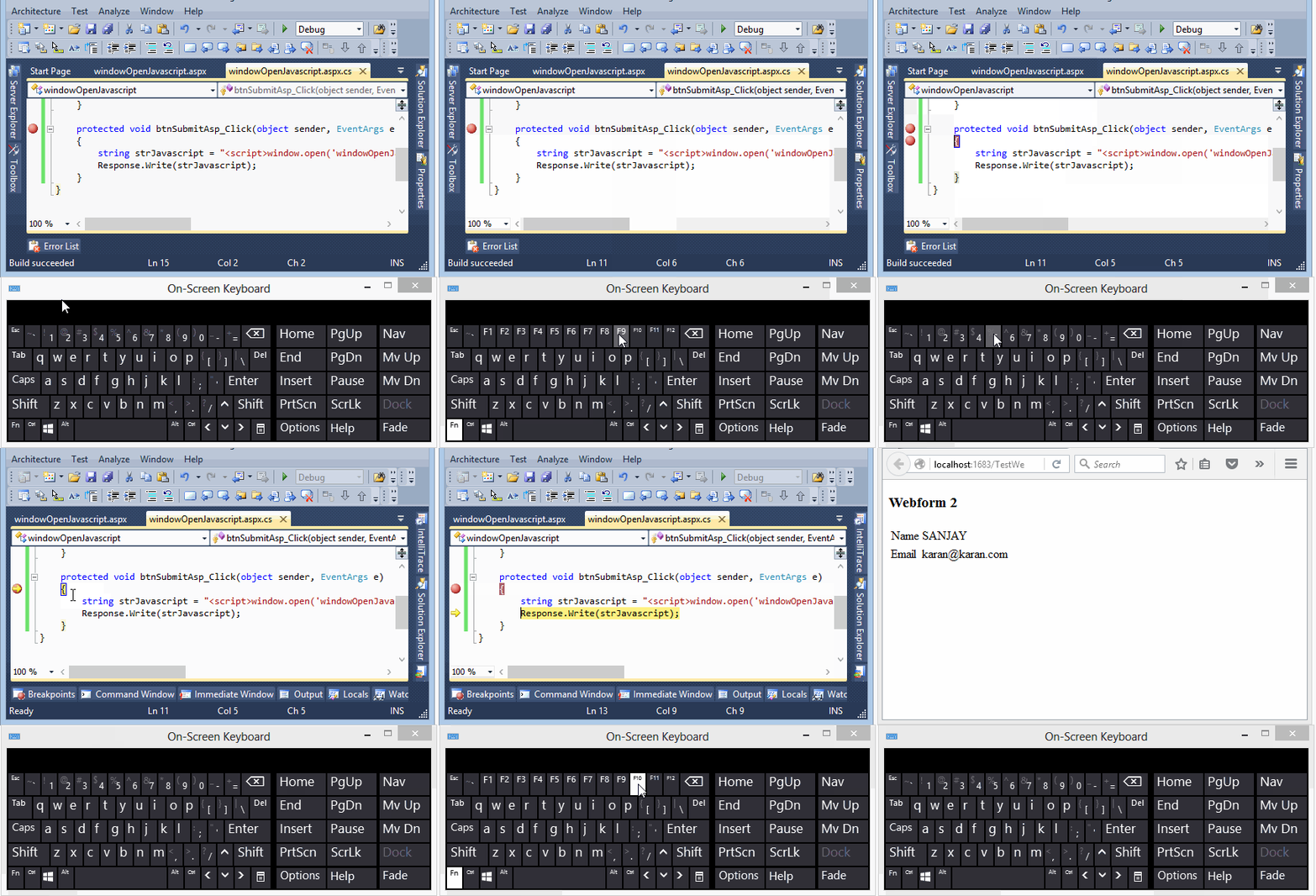
6. F12 (GO TO DEFINITION): This shortcut key is used to look after the definition of keyword, method and property.
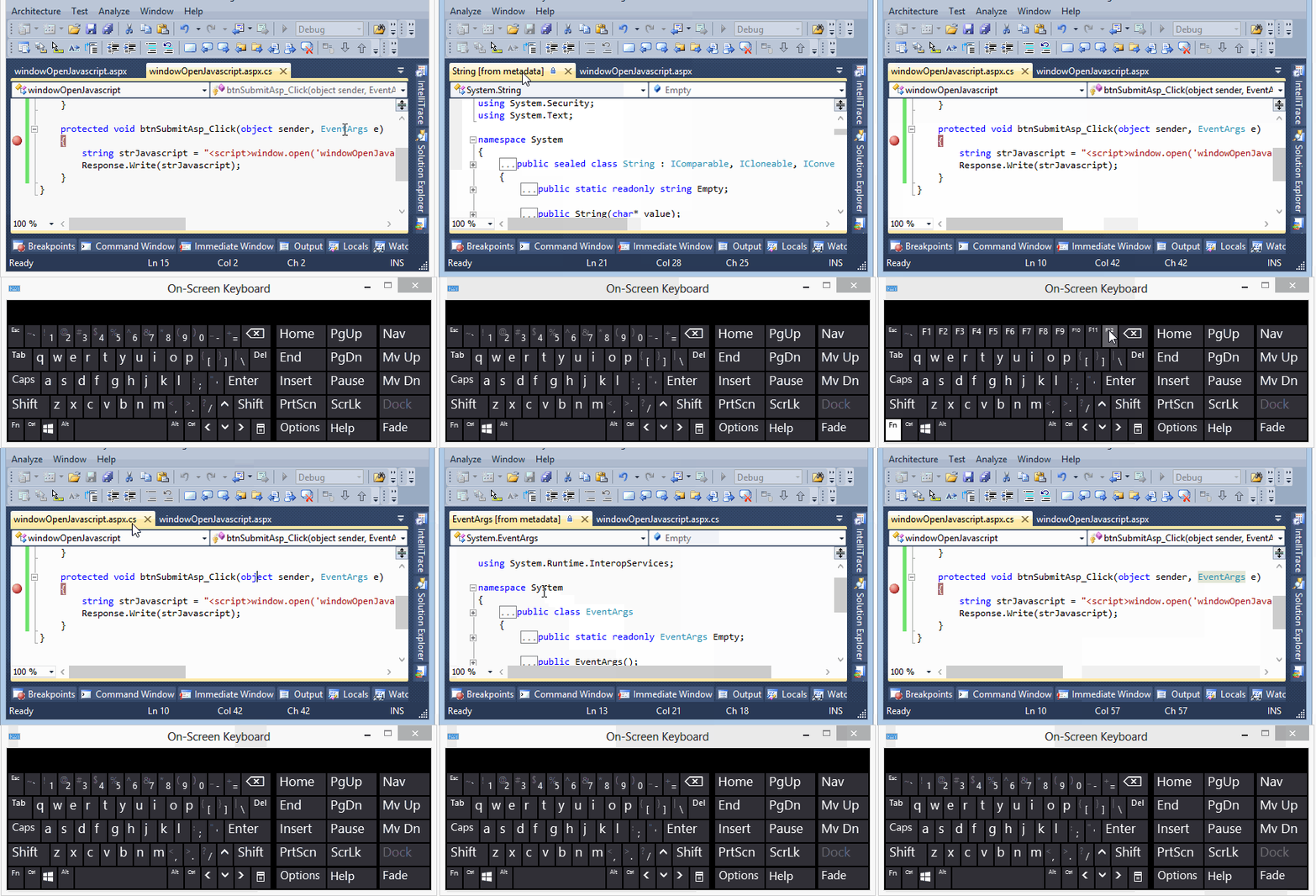
 
Go to Definition

7. CTRL + E + D, CTRL + K + D (CODE ALIGNMENT): This shortcut key is used to format the code or make the code follow proper alignment.
 
Code Alignment

8. CTRL + K + C, CTRL + K + U (COMMENT IN, COMMENT OUT): This shortcut is used to comment in/out of code. You only need is to highlight the code you want to comment.
 
Code comment In / Out

9. CTRL + F (FIND, REPLACE): This control is used to search some keyword from your code, form or from complete document. Not just finding that word, it can also replace the word from the document or even from the complete project.
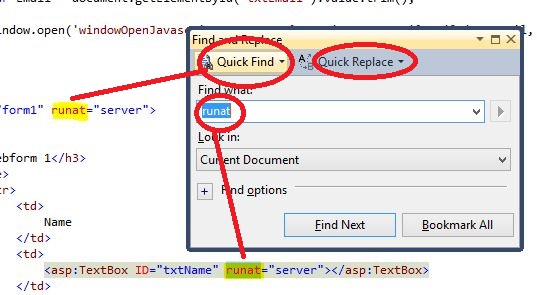
 
Find and Replace Window

10. CTRL + G (GO TO LINE): This is the easiest way to go to a particular line by entering the line number from the document.
 
Go To window


For any query, comment us below.


Related Questions: -


Q-1 How do you auto-format code in Visual Studio?
Ans- To format a Selection: CTRL + K + F.
        To format a Document: CTRL + K + D or CTRL + E + D.

Click imagination hunt to see latest Blogs

Keep learning and sharing…
Read More »

Tuesday, 16 February 2016

TOP 15 VISUAL STUDIO SHORTCUT KEYS

Today in Engineer's World, we are discussing ASP.NET & C# query faced by a developer in very easy way. Posted By- +Manish Kumar Gautam +LIVE VIAR +ASP.NET SOLUTIONS 

Click imagination hunt to see latest Blogs


Top 15 Visual Studio shortcut keys

This article is all about shortcuts in Visual Studio (VS).

Programmer rarely uses a mouse while coding. He tries to make everything possible by his keyboard. So, if you are a beginner or newbie to this area. You must try to find out some interesting shortcuts which make you feel like a professional coder.

Here are some most used 15 VS shortcut keys. Have a look. And try to make you act like a professional coder. This can be your very first step to programming field. At least for me, it is.

Let’s start finding all 15 Visual Studio shortcut keys.

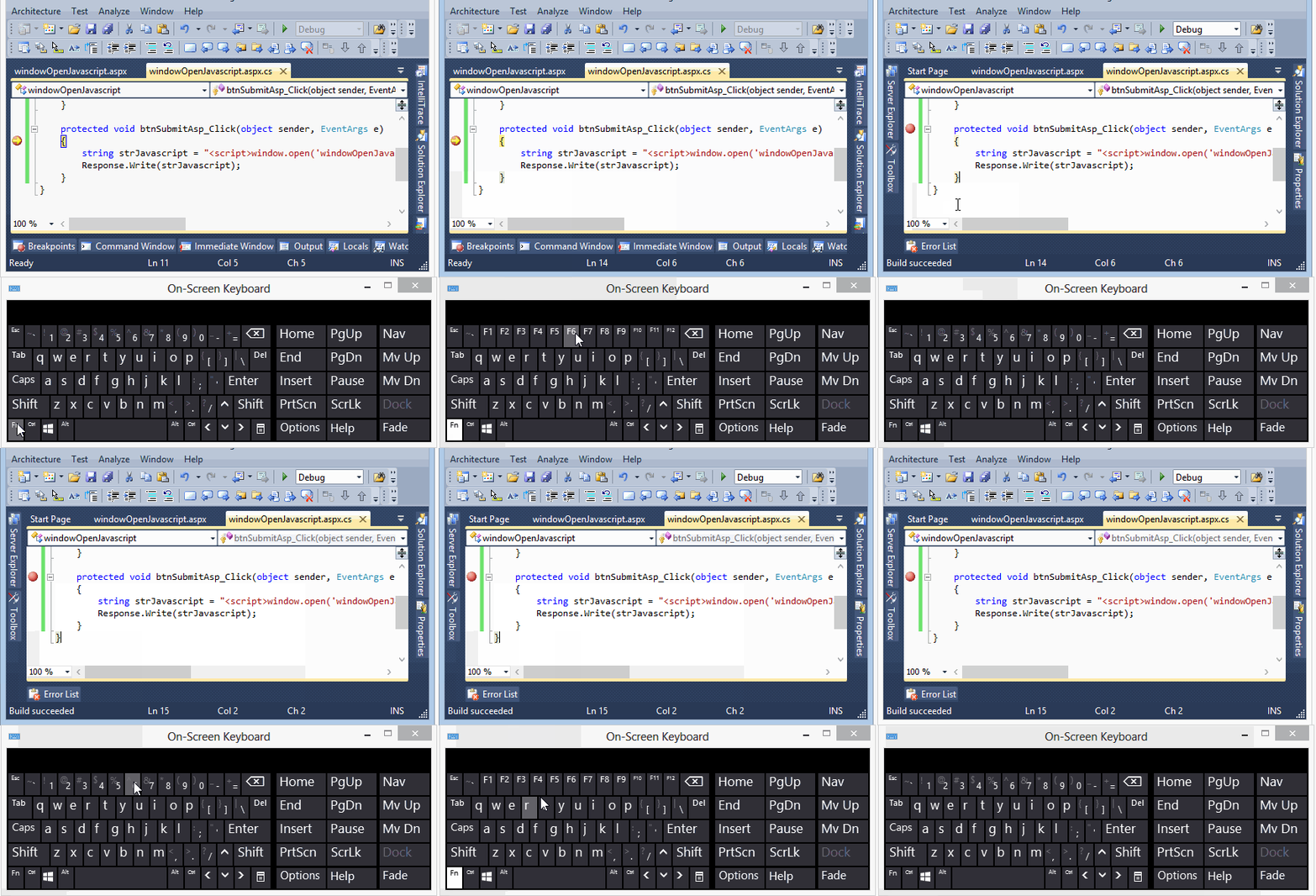
1. CTRL + F5 (RUN WITHOUT DEBUGGING): This shortcut key is used to run your project without debug mode.
 
Run without Debugging

2. F5 (RUN WITH DEBUGGING): This shortcut key is used to run your project in debugging mode.
 
Run with Debug

3. F6 OR CTRL + SHIFT + B (BUILD SOLUTION AND TO STOP DEBUGGING): This shortcut key is used to build your project and to check for compile time errors in the project. This shortcut key is also used to stop debugging. It is counter to F5 key.
 
Build Solution and Debug

4. F7, SHIFT + F7 (TO VIEW SERVER-SIDE CODE, TO VIEW DESIGN): This shortcut key (F7) is used when you want to view your server side code of web form. SHIFT + F7 key is used when you want to view your design of the web form. This is also a counter key to F7.
 
Toggle to Server and Source Code

5. F9, F10, F11 (TO APPLY DEBUG BREAKPOINT, DEBUG STEP OVER, DEBUG STEP INTO): Shortcut keys include (F10 and F11) are used to interpret code line by line and the F9 key is used in applying breakpoint at various lines.
 
Apply Debug


For any query, comment us below.


Related Questions: -


Q-1 In VS, which shortcut key is used to stop debugging?
A) F5
B) F9
C) CTRL + SHIFT + B
D) CTRL + SHIFT + F
Ans. Option(C).

Click imagination hunt to see latest Blogs

Keep learning and sharing…
Read More »

Featured post

Think that makes you rich and richer

 Napolean said: “You can think and grow rich, but if you can be brought up like most people with work and you won't starve, this wil...